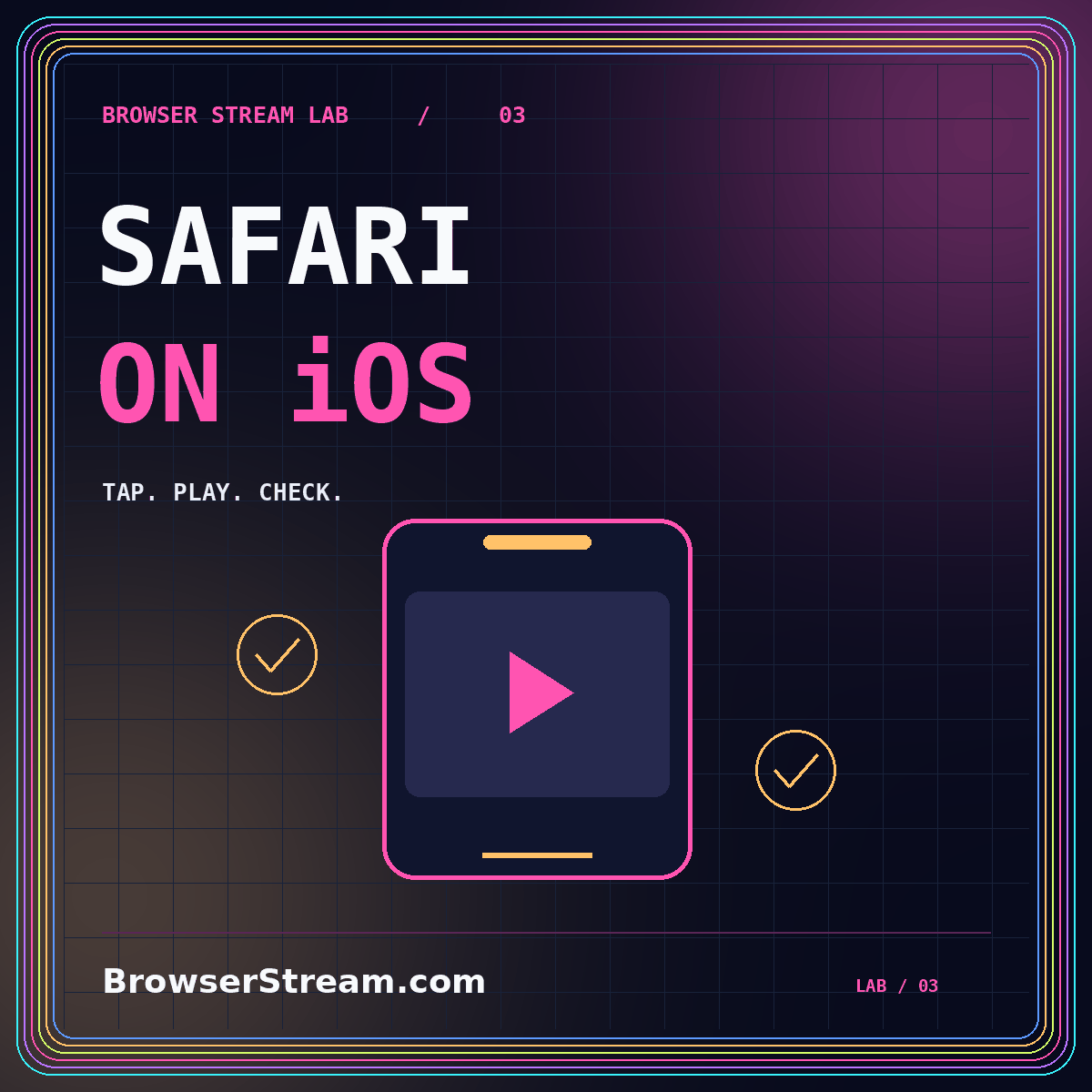
A video that behaves well on a laptop can still be frustrating on an iPhone. It may wait for a tap, open differently than expected, lose its place after an interruption, or send sound to an output the viewer forgot was connected. Treat these as separate observations. “Safari does not support my stream” is too broad to be a useful diagnosis.
This guide helps viewers and publishers test an iOS browser stream without promising identical behavior across every device and operating-system release. Begin with the iOS BrowserStream guide when your main concern is the phone or tablet; use the Safari topic page when comparing player behavior across Apple devices.
Identify the actual viewing environment
Record the device model, operating-system version, browser, and whether the link opened in a full browser or inside another application. These details matter to a reproducible test. A link opened from a messaging application may not present the same controls as a page opened directly in Safari, so keep the entry route in your notes.
Try the publisher's direct viewing page when it is available. Copy the legitimate page address into Safari instead of repeatedly reloading an embedded preview. Preserve the same account and content item while making this comparison. Otherwise, a changed permission or a different clip can obscure what the test tells you.
Ask what exactly fails: joining, starting playback, hearing sound, entering fullscreen, showing captions, or resuming. Write down the visible message. A brief screen recording can help support staff understand the sequence, but review it before sharing and remove account details, private conversations, or any sensitive material from the captured screen.
Understand why a tap can be necessary
WebKit's explanation of iOS video playback policies documents the distinction between muted or silent autoplay and playback involving sound, along with the role of the playsinline attribute. The article describes policies introduced with iOS 10; it is useful background, not a substitute for testing the current devices your audience uses.
For viewers, the practical first step is simple: tap the visible play control and deliberately enable sound. Do not assume a silent moving image is broken. For publishers, design a clear starting state and a real play control rather than relying on automatic playback. The interface should explain what is happening even when the browser chooses not to start immediately.
Avoid a misleading pause symbol over a video that never began. Also avoid making a silent decorative animation the only way to understand the page. A title, short description, and visible viewing controls provide a usable entry point when motion is paused or unavailable.
Check sound before changing the picture
Confirm the player's mute setting, the device volume, and the selected audio destination. Then check for headphones, a speaker, or another connected output. Listen to a known-working item on the same device so you can separate a source problem from a wider output problem. Repeat the test after intentionally selecting the output you want.
When the source is your own live event, ask a second person to listen from a different device. The publisher's local microphone meter is not the same as a listener hearing the correct mix. A rehearsal should include all speakers, any shared media, and transitions between them, not just the first presenter saying hello.
Do not solve an audio issue by increasing every volume control to maximum. Start at a comfortable level and adjust one control at a time. If you hear feedback during a production test, check whether a nearby viewing device is playing the same session through its speakers while an open microphone captures that sound.
Test inline and fullscreen deliberately
Inline playback keeps the video within the page; fullscreen gives it a dedicated viewing area. Neither presentation is automatically superior. A tutorial with supporting text may benefit from staying in the page, while a detailed demonstration may be easier to read fullscreen. Test the route your instructions actually recommend.
Rotate the device and inspect the controls, caption area, and important content. Avoid relying on a perfectly centered desktop screenshot to prove mobile usability. A speaker's face may remain visible while a chart legend or lower caption line becomes difficult to read. Review a section with the most visually demanding content.
Publisher check: make the page resilient
Reserve a stable area for the player so surrounding content does not jump when metadata arrives. Place instructions outside the video rather than hiding them in a poster image. Give important controls understandable labels and enough room to activate without hitting nearby actions. These are proposed usability checks, not a claim that every player exposes the same customization options.
Rehearse interruptions and returning to playback
An uninterrupted desktop test misses much of mobile viewing. In a rehearsal, briefly leave the page, return, rotate the device, and try the service's normal resume action. Record whether the video continues, pauses, or asks for another tap. Never promise background playback simply because one test happened to continue.
For live content, check what the viewer sees after returning. They may need to move back to the current event rather than continue from an older position. The exact behavior depends on the player and service. Put a short explanation next to the viewing link when the recovery action is not obvious.
Keep access recovery in the same test. An invited attendee should know how to return without borrowing someone else's account. Verify whether the original invitation remains usable and whether any extra approval is required. The organizer should own that answer before the event begins, not discover it while guests are waiting.
Isolate connection and device conditions
Use the same clip while comparing a stable wireless connection with another approved connection. Note where the test took place and whether the phone changed networks. Do not interpret one successful attempt as proof that a network is always reliable. Repeating the test at the planned viewing location is more useful than comparing unrelated speed-test numbers.
Try a lower picture-quality option when the player offers one, then observe the important content. The goal is an understandable session, not merely eliminating every pause by making the text unreadable. A presenter may need to enlarge slide text or simplify a demonstration rather than rely on viewers choosing the highest quality.
Check available charge and plan the session around a realistic device setup. Avoid covering the device or placing it in an unsuitable environment during a long test. If problems appear only after extended use, record the duration and conditions instead of changing several browser preferences without a clear hypothesis.
Handle permissions and private links carefully
A passive viewing page and an interactive meeting have different needs. Before granting camera or microphone access, confirm that you intentionally joined as a contributor. An unexpected prompt deserves a pause. Use the service's own explanation and permissions interface rather than following instructions from a pop-up claiming that your device needs an urgent repair.
If a private link fails, verify the invited account and the organizer's settings first. Do not publish the link in an open support forum. Share a description of the problem, the device details, and a redacted image where necessary. Our private browser streaming checklist explains how to separate viewing access from local browsing privacy.
Frequently asked questions
Should I clear all website data first?
No. Begin with the visible controls and a repeatable test. Removing site data can sign you out and change several conditions at once, making the original problem harder to isolate. Use a site-specific reset only when there is a clear reason, you understand the consequence, and you can restore the required access.
Is a successful iPhone test enough for an iPad?
Treat it as encouraging evidence, not complete coverage. Test the actual tablet, orientation, entry route, and viewing task where those matter to your audience. In particular, inspect captions and source text at the chosen layout size rather than assuming that a larger screen automatically creates a better presentation.
Conclusion: design for the real mobile journey
A useful iOS test follows the complete journey: opening the invitation, choosing to play, hearing the right output, reading captions, changing orientation, and returning after an interruption. Keep each observation tied to a specific environment. For publishers, provide visible controls and clear recovery instructions; for viewers, change one variable at a time. That approach yields better evidence than assuming that every Safari playback problem has one universal fix.